

Site content update.
- on December 12, 2023
- in Site Updates and Information
- 153 comments
- 66097 views
Site content update.Hello, many of you have seen some changes to the site regarding censorship of words, groups,usernames, topics, etc. On Friday our merchant suspended our services due to an automated audit that was returning back certain keywords... Read Full Story

We were on the Our Naked Story Podcast!
- on December 07, 2023
- in Best of
- 49 comments
- 50878 views
We were on the Our Naked Story Podcast!In an unexpected turn of events, we recently found ourselves in the virtual embrace of the "Our Naked Story" podcastan intimate platform dedicated to unraveling the diverse narratives within the nudist community. The... Read Full Story
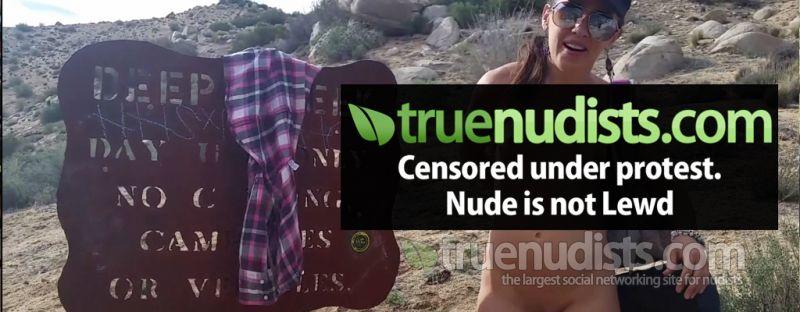
Youtube Shut us down again!
- on November 22, 2023
- in Naturist Topics
- 28 comments
- 44052 views
Youtube Shut us down again!Hello Everyone, We wanted to share a quick update about our YouTube channel. Recently, our nudist-oriented content, which has consistently followed YouTube's guidelines, faced an unexpected removal from the platform. In... Read Full Story
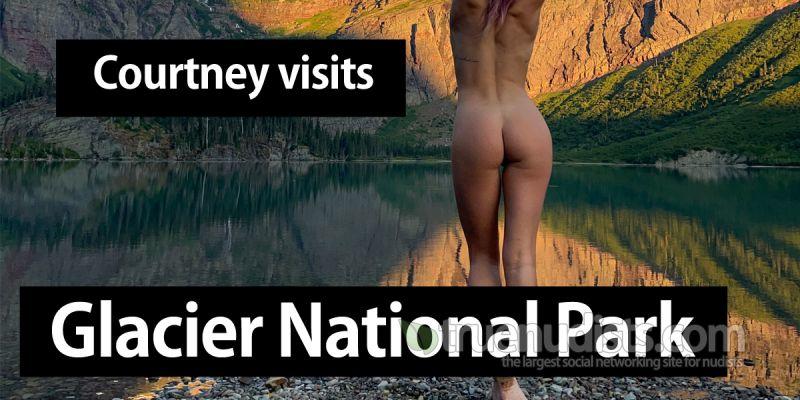
Glacier National Park with Nudist Courtney
- on October 13, 2023
- in Nudist Travel
- 21 comments
- 37667 views
Glacier National Park with Nudist CourtneyJoin us on an unforgettable journey to Glacier National Park in Northern Montana, where our adventurous nudist friend Courtney immerses herself in the stunning wilderness of this iconic destination! In this captivating video,... Read Full Story
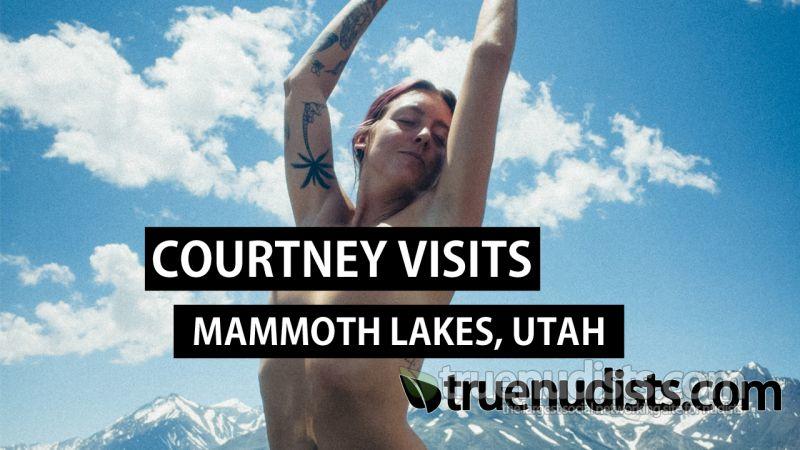
Nudist Adventure in Mammoth Lakes, UT
- on August 02, 2023
- in Nudist Travel
- 32 comments
- 33494 views
Nudist Adventure in Mammoth Lakes, UTHello, beautiful souls! I'm Courtney, and I am beyond excited to share with you my liberating journey through the pristine landscapes of Mammoth Lakes, Utah. As a nudist traveler, I embrace the freedom of being one with... Read Full Story
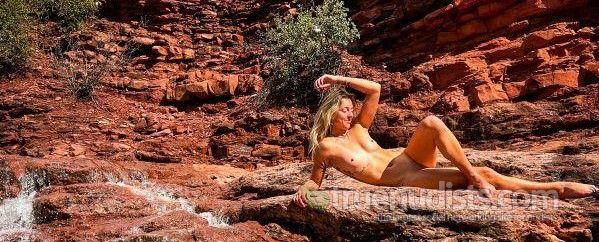
Welcome True Nudist Courtney!
- on March 28, 2023
- in Nudist Travel
- 52 comments
- 60696 views
Welcome True Nudist Courtney!Welcome to our latest video introducing our nudist friend, Courtney! Courtney is a passionate and experienced nudist who loves to travel and explore the country's many nudist locations. In these videos, we'll be following... Read Full Story
Do you have a nude Valentine?
- on February 09, 2023
- in The Nudist Experience
- 17 comments
- 31716 views
Do you have a nude Valentine?Valentines day is right around the corner and it got me thinking about all of our fellow nude users who come from all walks of life. We have many whose partners share their nude way of living and if you care to share your... Read Full Story
The top 5 nude beaches in the USA
- on January 26, 2023
- in Nudist Travel
- 20 comments
- 28805 views
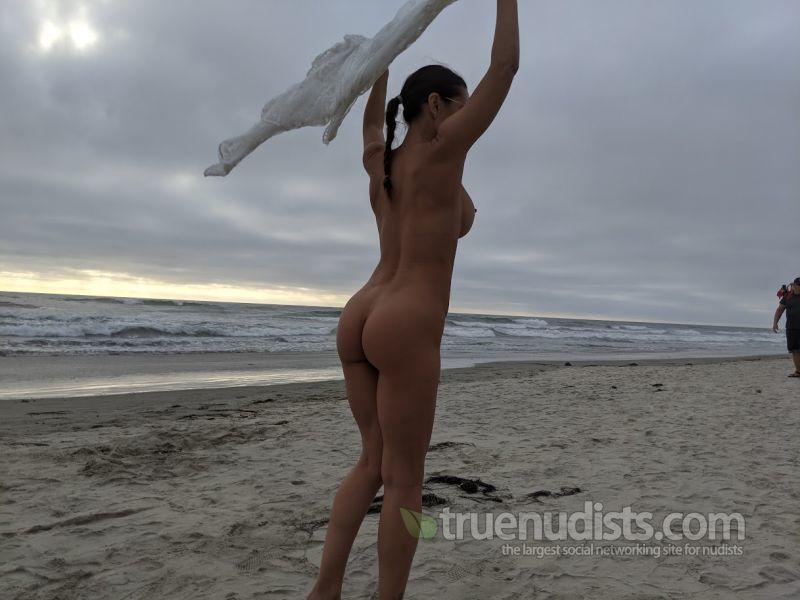
The top 5 nude beaches in the USAWhile it may be too cold to hit the beaches right now, we started daydreaming of warmer times and decided to figure out the top nude beaches to visit this summer in the US of A 1. Haulover Beach, Florida: Located in Miami-Dade... Read Full Story

We did it! 500,000 users! Now on to 1 million!
- on April 05, 2022
- in Press Releases
- 56 comments
- 48387 views
We did it! 500,000 users! Now on to 1 million!Truenudists.com achievement - 500,000 user signups! Truenudists.com has officially surpassed over 500,000 users globally. This milestone is especially heart warming as it also marks the 15th birth date of Truenudists.com. Big... Read Full Story

Mastercard compliance and Media uploads
- on October 13, 2021
- in Site Updates and Information
- 71 comments
- 125976 views
Mastercard compliance and Media uploadsFellow users, as of October 15th, Mastercard will enact new regulations that will affect the content sharing policies on the website. This will only apply to uploading media, and webcam broadcasting. All other facets of the site... Read Full Story

Has the pandemic directed you in nude ways?
- on May 13, 2020
- in Naturist Topics
- 97 comments
- 110691 views
Has the pandemic directed you in nude ways?Has the pandemic directed you in nude ways? Covid-19 has swept across the globe like a deadly assassin seeking out our elderly and those with weakened immune systems. Like many, Ive read about pandemics such as the Spanish Flu,... Read Full Story

Wonderhussy does the Portland World Naked Bike Ride
- on August 30, 2019
- in Best of
- 68 comments
- 145370 views
Wonderhussy does the Portland World Naked Bike RideOne of the largest WNBR in the world, 1000s of people strip nude to protest in the world naked bike ride. Join our favorite youtuber Wonderhussy as she visits a nude beach in Oregon, and then takes part in the world naked bike... Read Full Story
Filter Results




Get paid just by sending us users/traffic.
Signup takes seconds, start now!
Signup as an affiliate!